
Not all experiments are planned. What began as exploring Cursor for coding has evolved into something more potentially interesting to me: an AI tool for organizing my thoughts and projects.
If you’re not familiar with Cursor, it’s the new hot code editing tool that raised $60M a couple of months ago. The founders were recently interviewed on the Lex Fridman Podcast to discuss the future of coding with AI (haven’t watched it yet).
I’ve been experimenting with Cursor as a way to teach myself to code and create simple projects. Earlier this week I launched a site to make it easy to preprompt LLMs. It’s called MSGPROMPT.com and if you want to see why you may want to preprompt your LLMs you can watch the stream I recorded or read more about it here.
Anyway’s back to today’s experiment of using Cursor to organize my thoughts/projects/etc….Here’s what happened:
The “Aha” Moment
I had just finished a morning whiteboarding session where I braindump all the things that I’m thinking about and use it as a starting point for my day. Normally what I do is just upload it to Claude.ai and have it give me back a list of the things mentioned but when I opened my laptop I had Cursor already opened so I dragged the photo to Cursor chat and just said transcribe since it’s just a wrapper of Claude. It came back with the list of all the things written down that I’m used to. But I decided to open up Composer (Command I) and asked it to create separate files for all the different topics from my whiteboard. The files it generated were calendar.md, todo.md, goals.md, notes.md
That’s when it hit me, that I should just use Cursor as my primary tool instead of the various notes.app files and notion pages I’ve been using to date.
So, I organized the interface to have a split view of these files and it felt like exactly what I want in a personal project management tool albeit a duct taped version.
I’m sure I’m going to tinker with it some more but when all the files and tabs are open it currently looks like this:
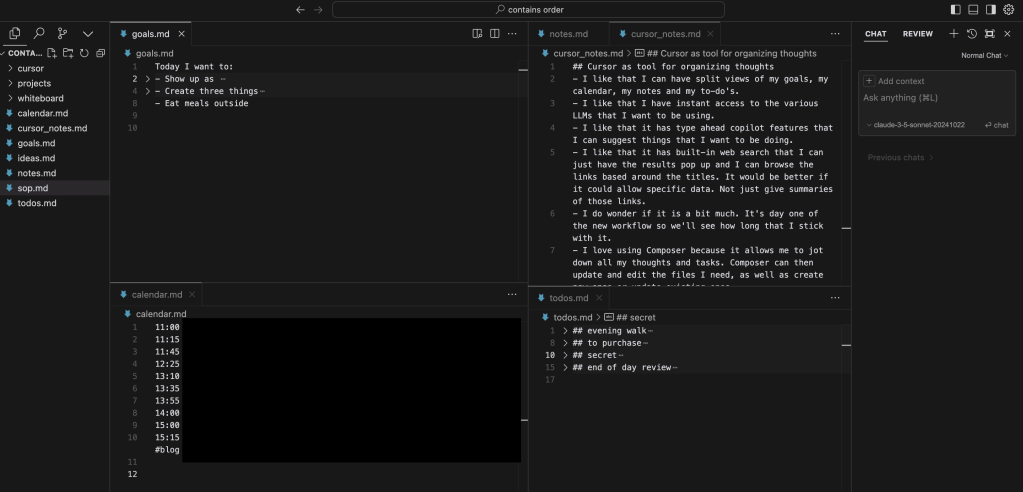
whenever a panel is selected (you can toggle with command 1,2,3,etc) it expands and provides more space and if i want focused view i can just have one file full screen
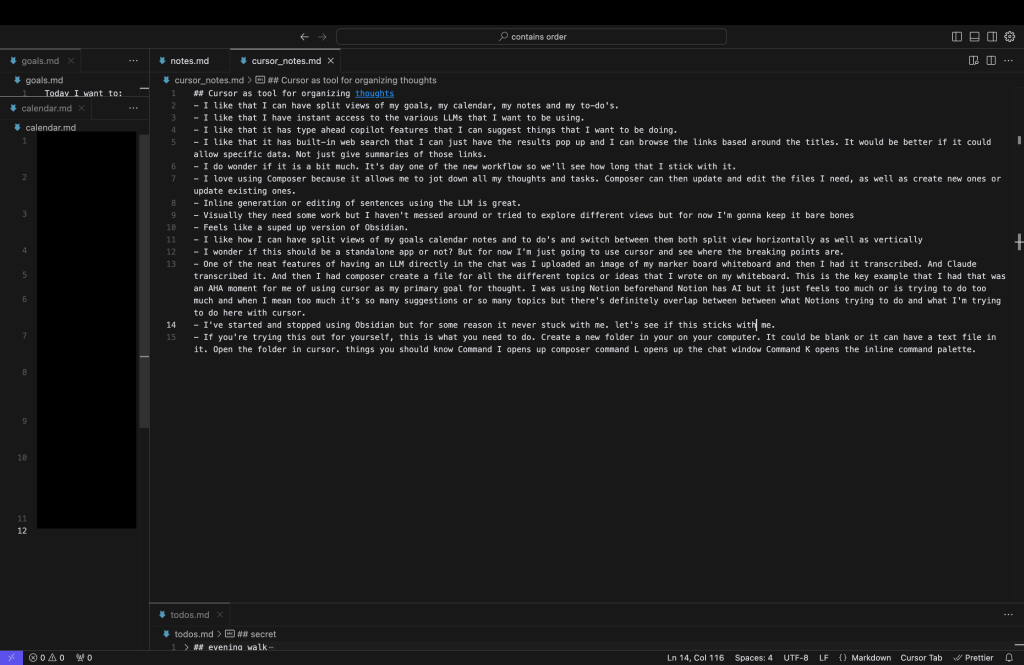
What makes the whole thing magical is Composer. It’s currently a hidden feature in cursor (command I or command shift I for full screen) but it allows me to stay in flow with the current document that I’m working on without heavy switching costs.
Here’s an example that I feel comfortable sharing of composer in action:
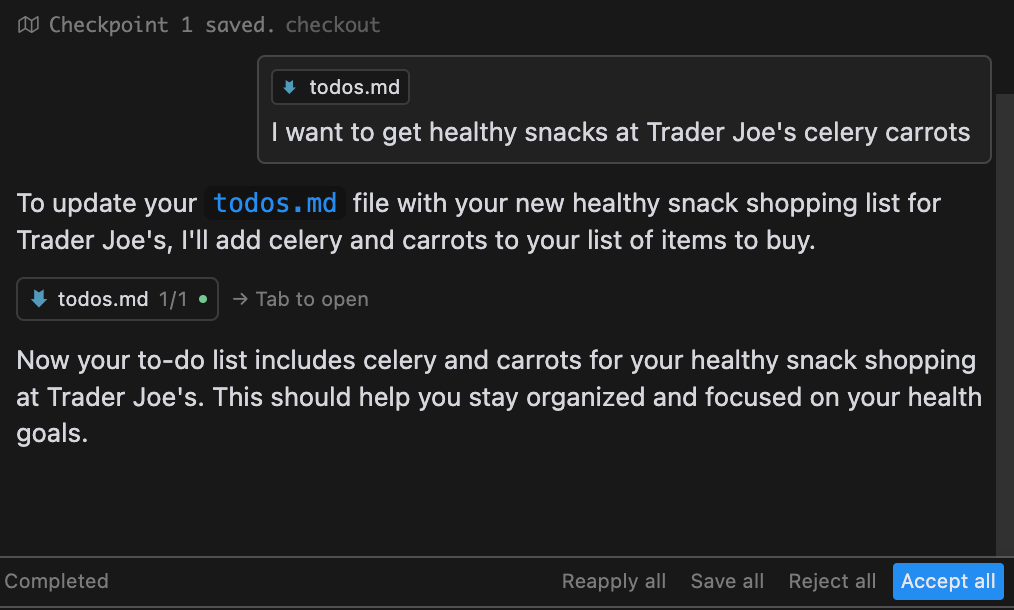
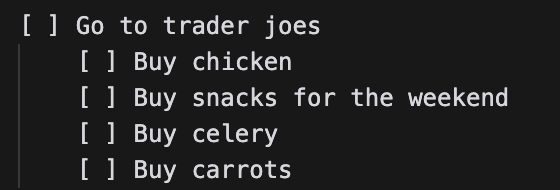
I realized I didn’t have any healthy snacks in my fridge. So I opened composer and just said “I want to get healthy snacks at Trader Joe’s celery carrots” and then hit Accept all.
What I like about Cursor
- Split views of goals, calendar, notes, and to-dos (both vertical and horizontal )
- Composer for taking thoughts and organizing it for me.
- Instant access to various LLMs, inline as well as in chat view
- Type-ahead prediction features for suggestions which takes into account your formatting and other files
- Built-in web search (just type @web or in settings you can have it set to always search web)
Ugh moments so far
- Visually lacking. It’s not so easy on the eyes (haven’t explored different themes at all)
- Would be great if web search returned more specific data instead of just title + link.
- Ordering or prioritizing long lists is annoying
Why Not Just Use Other Tools?
I’ve tried using Obsidian multiple times – it never stuck.
Notion has AI but feels like it’s trying to do too much with too many suggestions and topics. While there’s overlap between what Notion’s trying to be and what I’ve managed to do with Cursor, the more customized approach feels better to me even though the UI isn’t as pretty as Notion’s.
Closing Thoughts
It’s day one of this new workflow, so I don’t know if it will stick longer than my time with Obsidian, but here’s what I’m going to pay attention to:
- Whether it feels like too much effort for output
- Where the breaking points are or more specifically what features is it missing: tables? linking?
- If this should be a standalone app rather than using Cursor.
- Do I go back to Notion or Notes.app
If you want to try it yourself
Download Cursor. You can use the free plan to test the magic.
Create a new folder on your computer with the files you want to use, then open it in Cursor.
Essential shortcuts:
- Command + I: Opens Composer
- Command + L: Opens LLM chat window
- Command + K: Opens inline generate
Let me know how it goes for you msg@containsmsg.com or @msg
 MSG.WORLD
Leave a comment